This post is a write-up of what I did to connect a DGX Spark box through ssh from my Mac (Macbook Air).
What is DGX Spark?
DGX Spark is a personal computer for AI development provided at a compact box. It has a 128 GB unified memory with a NVIDIA GB10 chip.
Based on the specs, the box doesn’t support the Thunderbolt protocol, which means that Ethernet connection is required to connect to the box, if you want to use it remotely.
Two setups are available.
Setup 1: Physical Ethernet Connection (when Internet is connected through Wifi)
I think this is not a typical use case (based on the speed performance). But since I used a public Wifi network provided by my apartment, I set it up this way.
- Physically connect Mac and DGX Spark using an Ethernet cable.
- On DGX Spark, set the Ethernet interface as a local-only connection. Note that the box has multiple Ethernet interfaces, and you are using the one connected to your Mac.
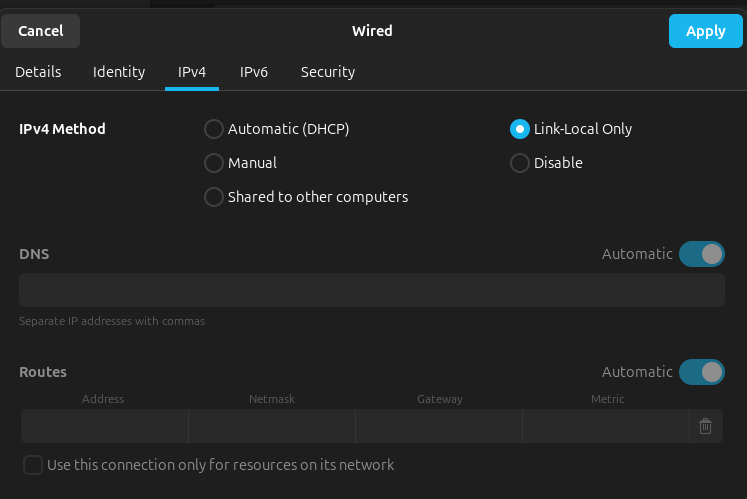
- On Mac, keep Ethernet on DHCP (Automatic). It means that your Mac will act as a DHCP server for DGX Spark, and assign an IP address to the box.
Now, you can ssh into the box with
$ ssh <username>@<server_name>.local # e.g. ssh abc@dgx_spark.local
or
$ ssh <username>@<IP_address> # assigned by your Mac
Setup 2: DGX Spark Wifi Hotspot (when Internet is via cables)
If your DGX Spark is already on the internet through physical cables, hotspot mode is also available.
- On DGX Spark, enable Wifi hotspot (Settings > Wifi > Turn on Wifi Hotspot).
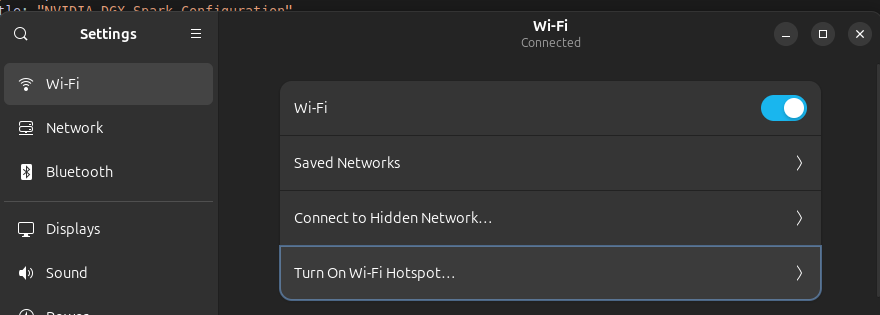
- On Mac, connect to the Wifi network created by DGX Spark.
Now, you can ssh into the box with
$ ssh <username>@<server_name>.local # e.g. ssh abc@dgx_spark.local
or
$ ssh <username>@<IP_address> # You can find the IP address in the DGX Spark.
Additional Tips
Note that
-
you can also connect to Mac from DGX Spark through ssh.
-
you need to enable a firewall that you used.
example
Using ufw on DGX Spark:
$ sudo ufw allow in on <interface_name> to any port 22 proto tcp